Best Canvas LMS Extensions for Students in 2026

·9 min read
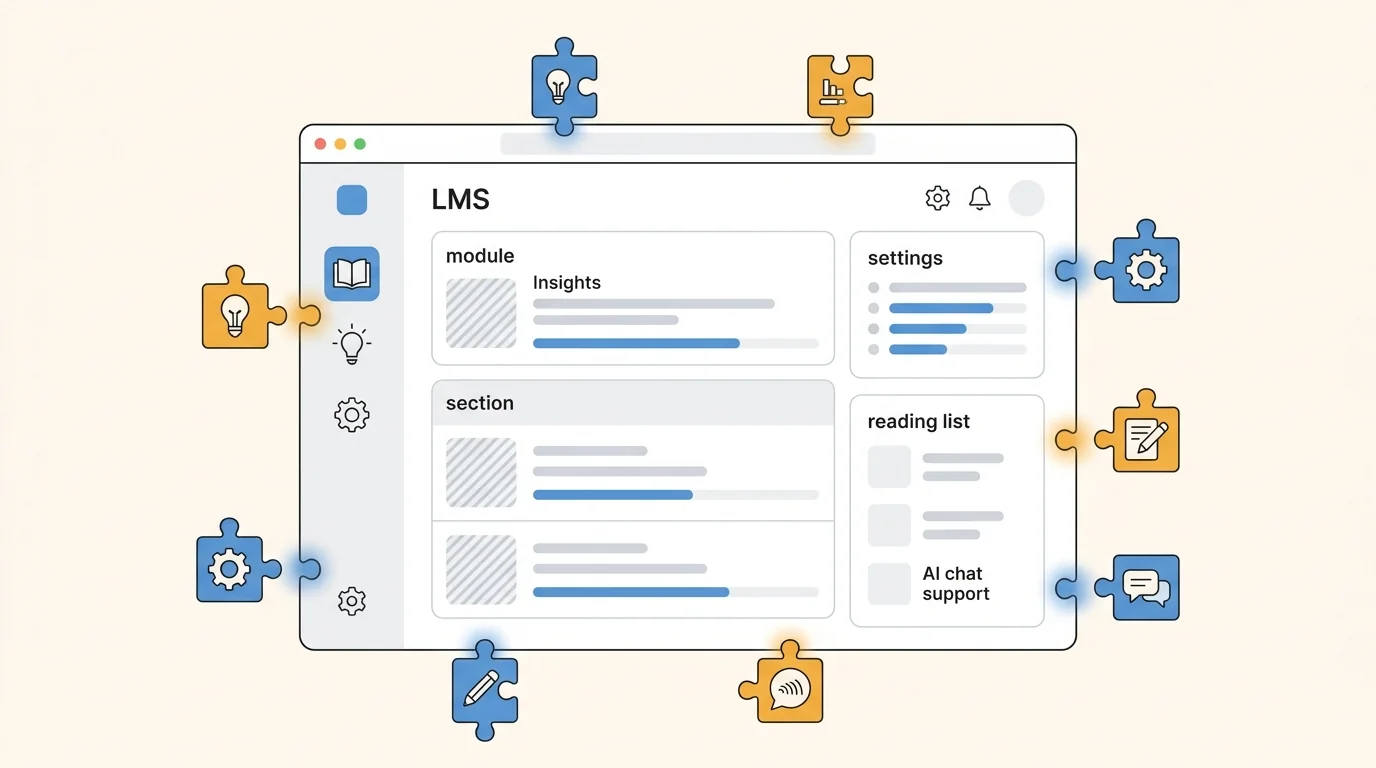
Canvas is the learning management system used by thousands of universities, colleges, and school districts worldwide. If your institution uses Canvas, you spend a significant portion of your academic week inside it — checking deadlines, downloading materials, submitting assignments, and tracking grades. What most students don't know is that a well-chosen set of browser extensions can substantially improve that experience.
This guide covers the best Canvas extensions in 2026 — tools that improve deadline visibility, streamline file management, enhance accessibility, and integrate AI study tools directly with your course materials.
What Canvas Extensions Can (and Can't) Do
Before diving into specific tools, it's worth understanding what browser extensions for Canvas actually do.
What they can do:
- Modify how Canvas displays deadlines and to-do lists in your browser
- Add keyboard shortcuts and navigation improvements
- Extract and organise files from Canvas course pages
- Integrate third-party study tools with Canvas content
- Improve accessibility (font size, contrast, screen reader support)
- Show grade calculations and what-if scenarios
What they can't do:
- Access grades or data from your institution's Canvas system without your login
- Submit assignments or modify your account data
- Access other students' information
- Bypass Canvas security or academic integrity measures
Extensions work within what your browser and Canvas allow. They enhance the interface; they don't access anything beyond what you already have permission to see.
The Best Canvas Extensions for Students
1. CanvasFiles — Best for Organising Course Materials
CanvasFiles (available as a Chrome extension) automatically organises all downloadable files from your Canvas courses into labelled, sortable lists. Instead of navigating into each module to find a specific PDF or slide deck, you get a consolidated view of all files across all your courses, filterable by file type, course, and date.
For students with five or more active courses generating regular content uploads, this removes a significant amount of file-hunting friction. The extension doesn't download files automatically — it surfaces them in a more accessible format so you can find and download what you need quickly.
Best for: Students juggling multiple courses with large volumes of uploaded materials.
2. Better Canvas — Best Overall Interface Improvement
Better Canvas is the most widely recommended Canvas browser extension in the student community, and it earns that position. It adds a dark mode to Canvas (which the native Canvas doesn't offer), improves the to-do list to show assignments across all courses more clearly, and adds a visual calendar view that makes deadline tracking significantly more intuitive.
Additional features include animated backgrounds for the Canvas dashboard, a cleaner layout for module pages, and improved typography. Most of these are cosmetic, but cleaner visual presentation reduces cognitive load during long study sessions — and dark mode is genuinely useful for late-night deadline checking.
Available for Chrome and Firefox. Free.
Best for: Any Canvas user who wants a cleaner, more modern interface with better deadline visibility.
3. Canvas Assignments Calendar Sync — Best for External Calendar Integration
Canvas has a built-in calendar, but it doesn't sync natively with Google Calendar or Apple Calendar. Several extensions and third-party tools solve this by exporting your Canvas due dates as a subscribable calendar feed that updates automatically as your instructors add or modify assignments.
The typical setup: generate a calendar feed URL from Canvas (Settings → Calendar → Calendar Feed), then add it to your Google Calendar as a subscribed calendar. Many extensions automate this process with a single click.
Once set up, all Canvas assignment deadlines appear in your main calendar alongside your other commitments — classes, work, personal events — giving you a unified view of your week rather than switching between Canvas and your calendar to understand your workload.
Best for: Students who rely on Google Calendar or Apple Calendar for schedule management.
4. Grammarly — Best Writing Assistant for Canvas Submissions
Grammarly's browser extension works inside Canvas's built-in text editors — the rich text areas used for discussion posts, essay submissions, and online assignment responses. If you're writing directly in Canvas rather than drafting in Word or Google Docs, Grammarly provides grammar and clarity feedback in-situ.
This is particularly useful for timed online assessments where you're writing directly into Canvas and don't have time to copy-paste into a separate editor. The free tier catches grammar and basic clarity issues. Premium adds tone and advanced style suggestions.
Best for: Students who submit written work directly through Canvas text editors.
5. Mercury Reader — Best for Distraction-Free Module Reading
Mercury Reader (and similar reader-mode extensions) strip away navigation elements, sidebars, and visual noise from web pages, leaving only the main content. For Canvas pages with heavy navigation menus and institutional branding, activating reader mode can create a cleaner reading environment for long text-based modules.
The extension isn't Canvas-specific, but it's particularly useful on content-heavy Canvas pages. It doesn't work on PDFs or embedded content — only on standard HTML text pages.
Best for: Students who find Canvas's interface visually cluttered during extended reading sessions.
6. CuFlow Web Clipper (via CuFlow workflow) — Best for AI Study Integration
CuFlow doesn't have a native Canvas extension, but the workflow integrates well. Download your Canvas course PDFs and upload them directly to CuFlow, which generates flashcards, quizzes, and summaries from your actual course materials. The AI Q&A answers questions grounded in what your specific lecturer uploaded — not generic knowledge — which is important for courses where the specific framing and terminology matter for assessments.
For students whose primary bottleneck is converting Canvas course materials into active study tools, this workflow (Canvas → download → CuFlow → study) is more effective than any passive extension. The extension installs in a minute; the study workflow takes the same amount of time you'd spend re-reading notes without the retention benefits.
Best for: Students who want to convert Canvas PDFs and lecture notes into active study materials with spaced repetition.
7. GoFullPage — Best for Saving and Annotating Canvas Pages
GoFullPage captures a full-page screenshot of any web page, including long Canvas module pages that extend beyond the viewport. The resulting image can be saved as a PDF or PNG and annotated in any PDF reader.
For students who prefer to annotate course outlines and module pages rather than printing them, this provides a low-friction way to capture Canvas content for offline review. Works across all browsers and requires no Canvas permissions.
Best for: Students who annotate course materials and want to capture Canvas pages for offline reference.
Canvas Accessibility Extensions
Several extensions improve Canvas accessibility for students with specific needs:
Helperbird: Adds dyslexia-friendly fonts (OpenDyslexic, Lexie Readable), text-to-speech, colour overlays to reduce visual stress, and immersive reader mode. Available for Chrome, Firefox, and Edge. Free tier covers the core accessibility features.
Read Aloud: Text-to-speech extension that reads Canvas page content aloud with adjustable speed and voice. More flexible than built-in browser TTS. Free.
Dark Reader: Adds a universal dark mode to all websites, including Canvas. More customisable than Better Canvas's built-in dark mode if you want fine-grained control. Free.
If you need accessibility accommodations, contact your institution's disability services office — they can also advise on tools and settings available within Canvas itself.
Extension Safety: What to Check Before Installing
Browser extensions have broad access to web pages you visit. Before installing any extension:
Check the permissions requested. An extension claiming to improve Canvas deadline visibility shouldn't need access to your passwords or clipboard. Read the permissions dialog carefully.
Check the developer and publisher. Well-maintained extensions with clear developer information and regular updates are lower risk than anonymous extensions with no update history.
Check user reviews and install count. Extensions with thousands of active installs and recent positive reviews are more likely to be legitimate and actively maintained.
Check your institution's policy. Some universities have policies on third-party tools that interact with their LMS. If your institution has a strong data protection policy, ask IT services whether specific Canvas extensions are permitted before installing.
The extensions listed in this guide are widely used, have established developer profiles, and don't request unusual permissions. As with all software, install only what you need and remove extensions you no longer use.
Setting Up Your Canvas Extension Stack
For most students, the practical starting point is:
- Better Canvas — improved interface and dark mode
- Calendar sync — Canvas deadlines in your main calendar
- Grammarly — writing assistance in Canvas text editors
- CuFlow workflow — Canvas PDFs into active study materials
Add specialised tools (CanvasFiles, accessibility extensions) as specific needs emerge. An extension stack of 4-6 well-chosen tools is more manageable than 12 half-used ones.
Frequently Asked Questions
Are Canvas extensions safe to use?
Most widely-used Canvas extensions are safe, but all browser extensions carry some inherent risk since they can access page content. Check permissions before installing, use extensions from reputable developers, and remove ones you don't use. Avoid extensions that request access to passwords or sensitive data for functionality that doesn't require it.
Does my university allow Canvas browser extensions?
Most universities allow browser extensions that modify the Canvas interface on your own device. Extensions that attempt to manipulate grades, submissions, or other users' data would violate academic integrity policies. If you're unsure about a specific extension, check with your institution's IT services.
Can a Canvas extension see my grades?
Canvas extensions that can see your grades do so through your own logged-in session — the same data you can see when you're logged in. They don't have access to grading systems or data beyond what's visible to you. Extensions that display grade calculations or what-if scenarios read your existing grade data from Canvas and calculate locally.
What is the best Canvas extension for deadlines?
Better Canvas's improved to-do list and calendar sync to Google Calendar together provide the best deadline visibility. The Canvas-to-Google Calendar sync is particularly valuable because it puts your assignment deadlines alongside your other commitments, making it easier to plan your week realistically.
Do Canvas extensions work on mobile?
Most Canvas browser extensions are designed for desktop Chrome, Firefox, or Edge browsers. They don't work in the Canvas mobile app or on mobile browsers that don't support extensions. The official Canvas Student app has some built-in notification and calendar features for mobile deadline management.
Getting More From Canvas
The Canvas extensions above improve your experience inside the LMS, but the biggest gains in academic performance come from what you do with the materials Canvas contains. Downloaded PDFs, lecture slides, and course readings are the raw inputs for effective study — and the tools that convert those inputs into active learning (flashcards, quizzes, spaced repetition) are where the grade improvement actually happens.
Better Canvas makes the interface cleaner. Calendar sync protects your deadlines. CuFlow makes your course materials work harder for you. Together, they cover the full workflow from accessing materials to actually learning them.